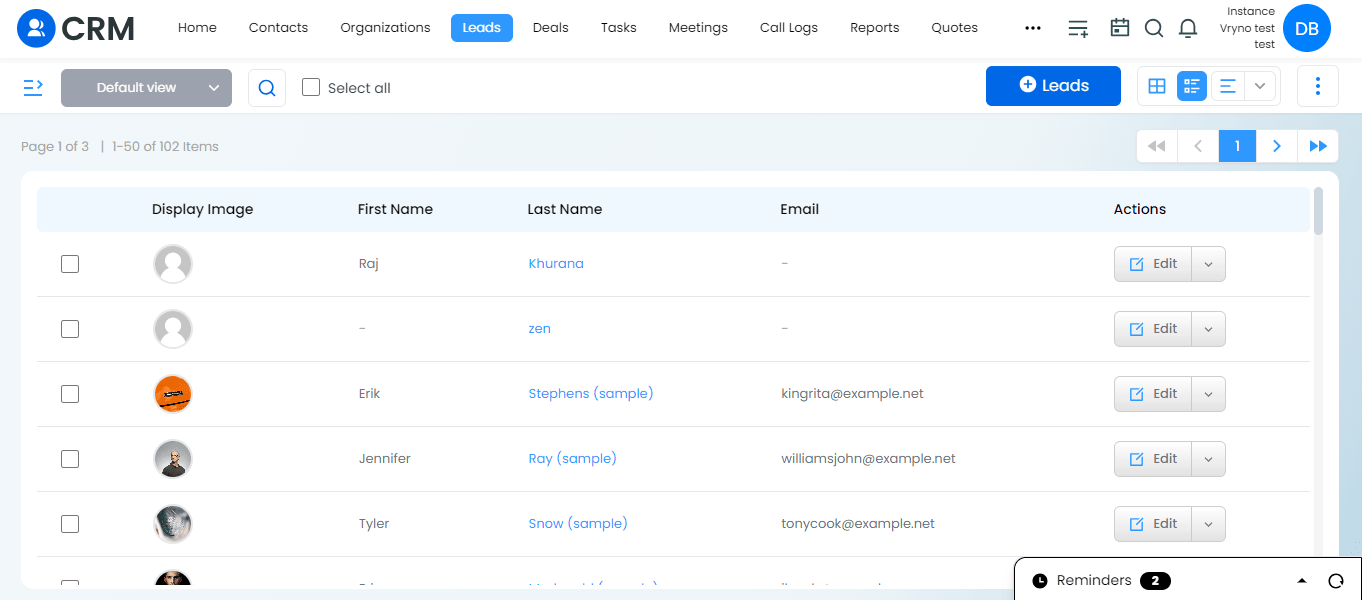
Steps to Customize Module Layouts in Leads module in Vryno CRM:
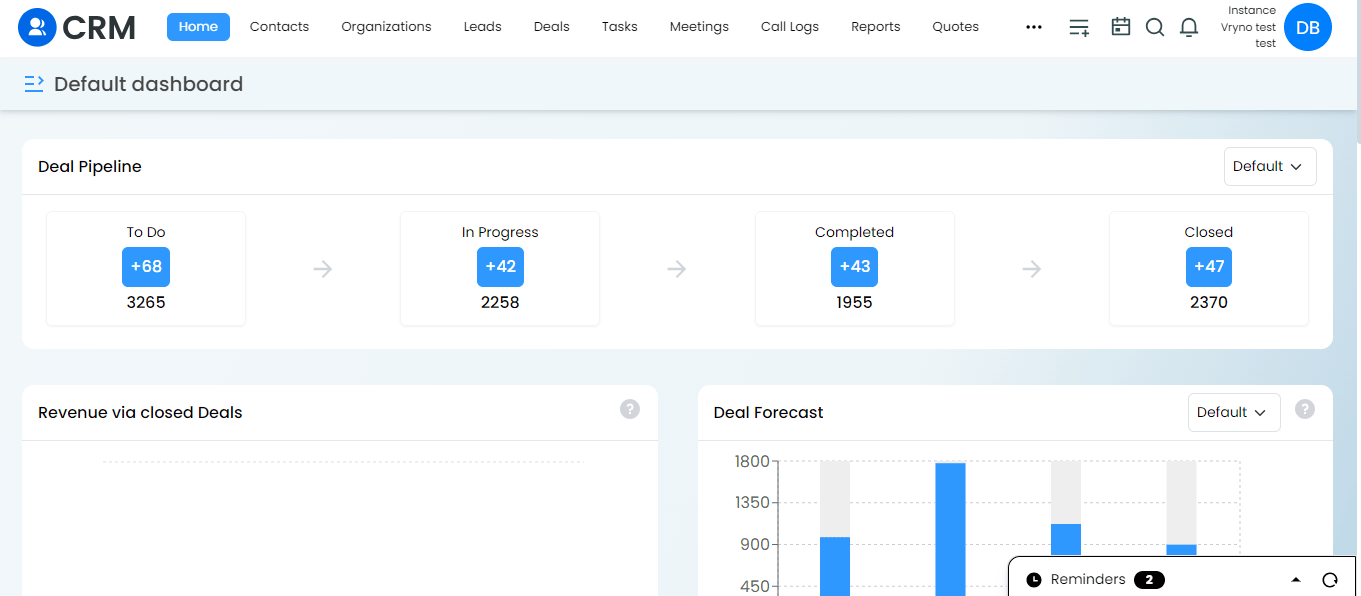
- Login to Vryno CRM: Access the Vryno CRM platform by entering your User ID and Password.
- Navigate to the Lead You Want to Customize: Find and click on the lead you wish to customize.
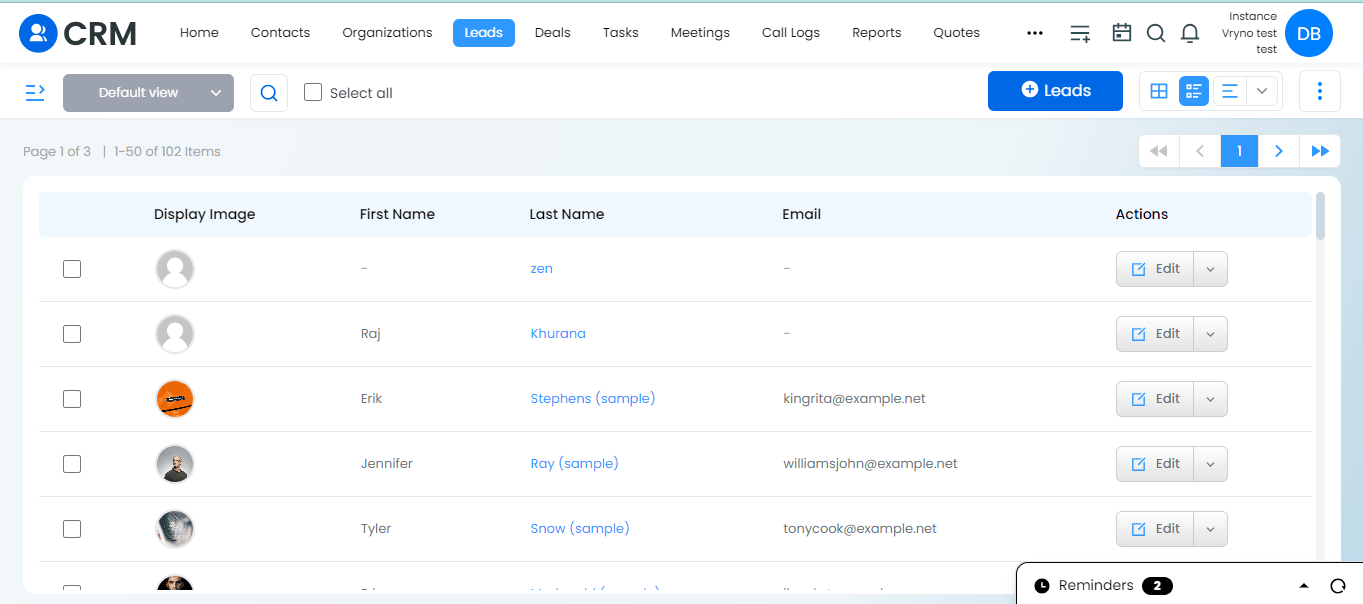
- Enter Edit Mode: Once on the lead details page, locate and click on the “Edit” option.
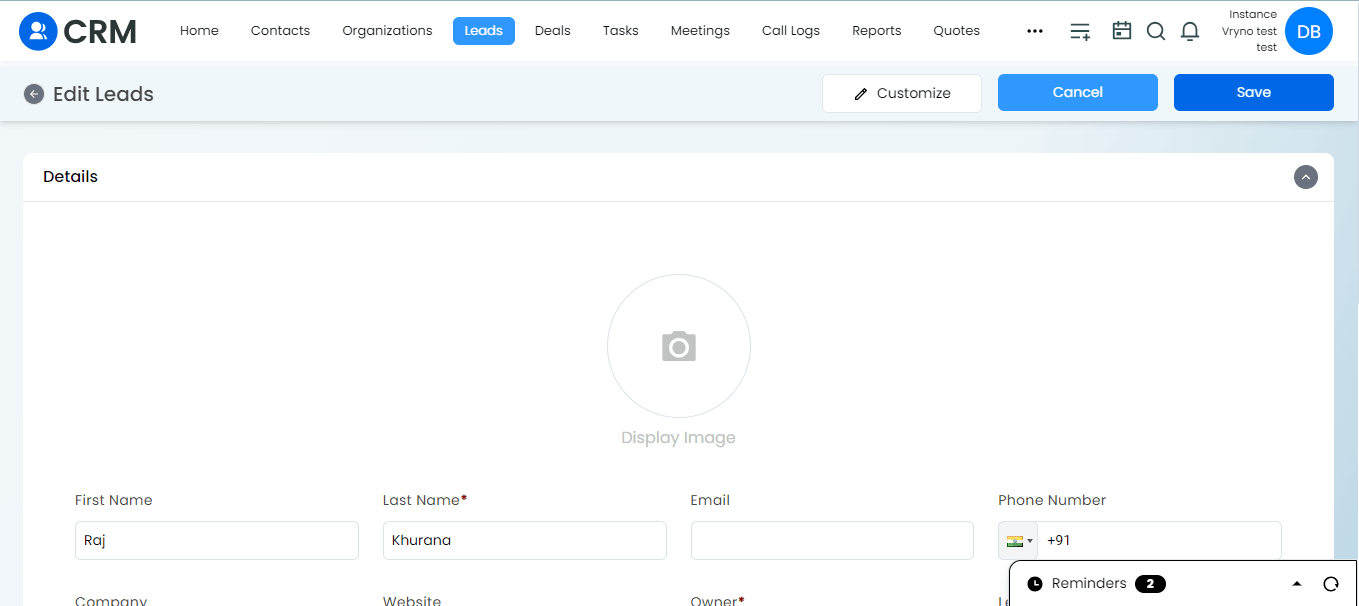
- Select Customize Option: Look for the “Customize” option, which should allow you to make changes to the lead layout.
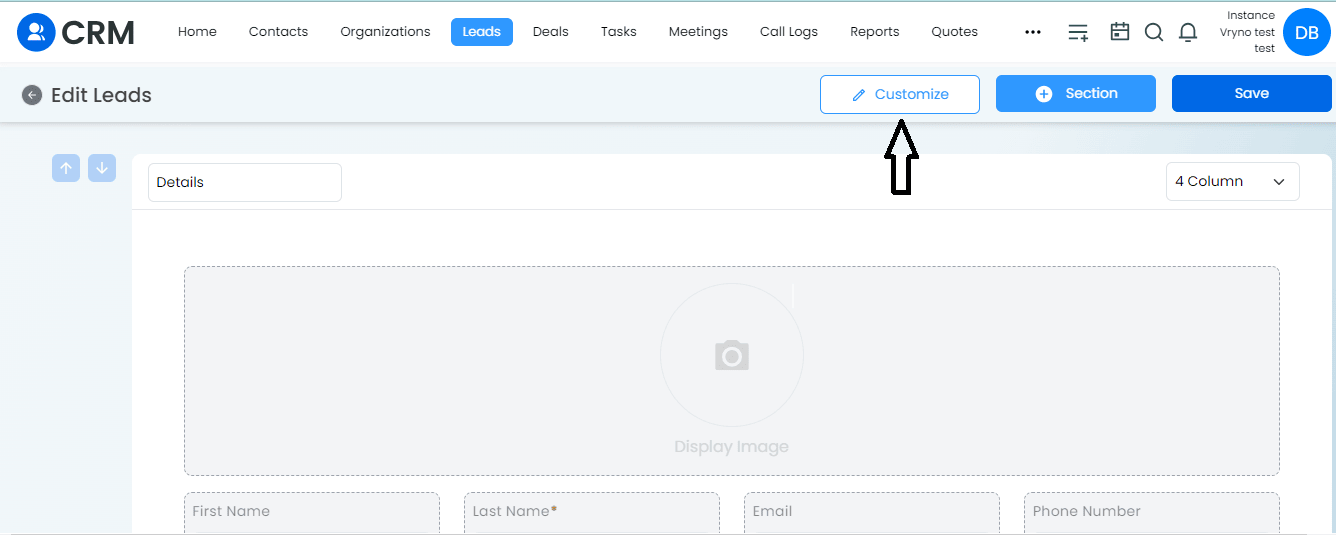
- Add a New Section: Click on the “+ Section” button to add a new section to the lead layout.
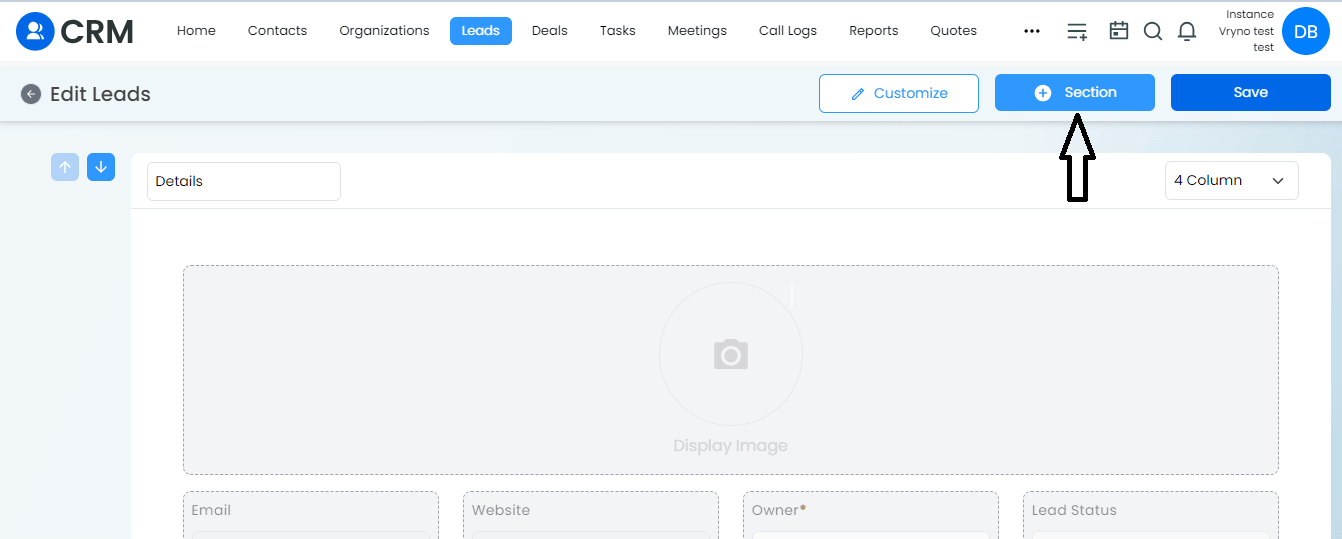
- Choose Section Details: Specify the details for the new section, such as naming it “Leads Additional Information.”
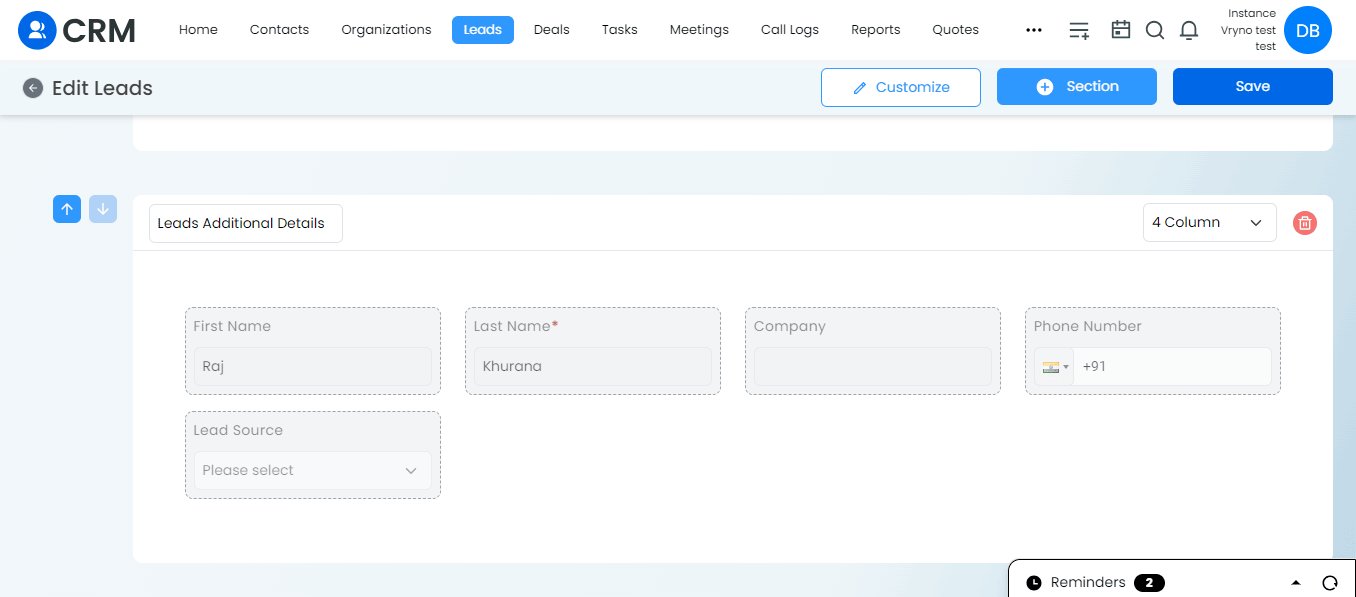
- Add Tabs to the Section: Within the new section, select tabs to include, such as “First Name” and “Last Name, etc.”
- Configure Tab Display: Use arrows or similar interface elements to set up the display order and arrangement of the tabs.
- Save Changes: Save your customization by clicking on a “Save” or “Apply” button.
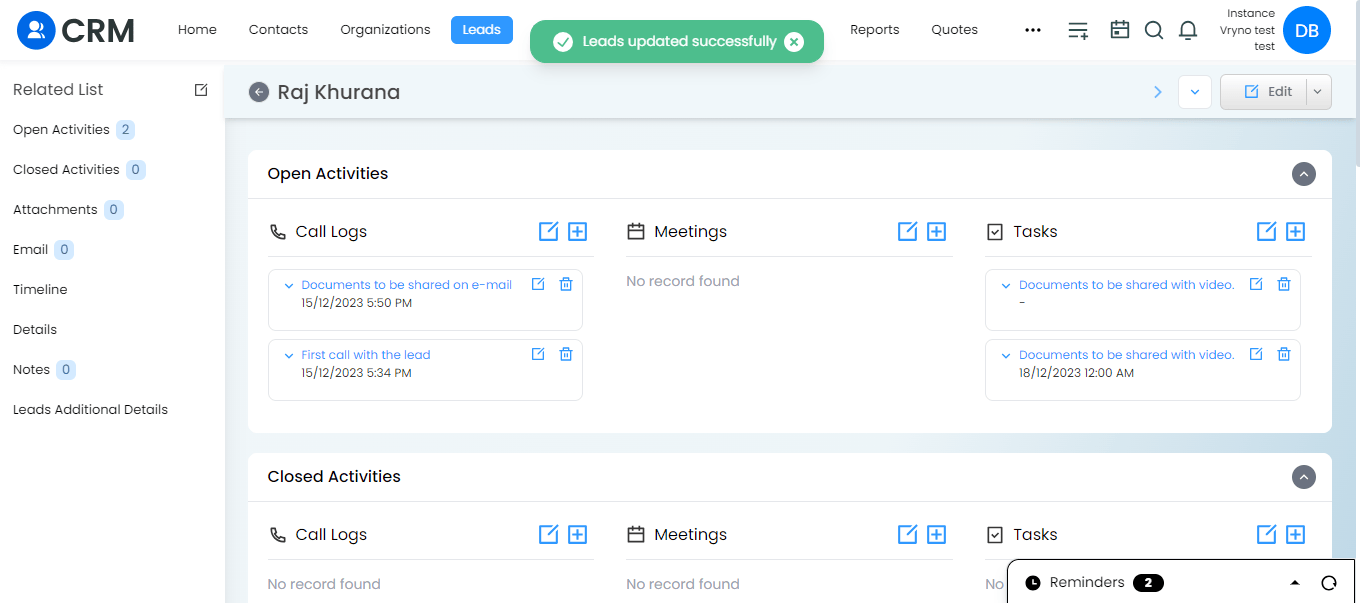
- Review the Updated Lead Layout: Exit the customization mode and return to the lead details page to see the updated layout with the customized sections and tabs.